Admin tour

Managing Your Team is Simple with Impact CE

Entirely web-based. No special software to install. The team dashboard lives inside the same Impact CE interface your clinicians use, but owners and admins see an extra set of pages. Here is a brief tour.

An administrator using Impact CE

The quick tour

1. Team Members

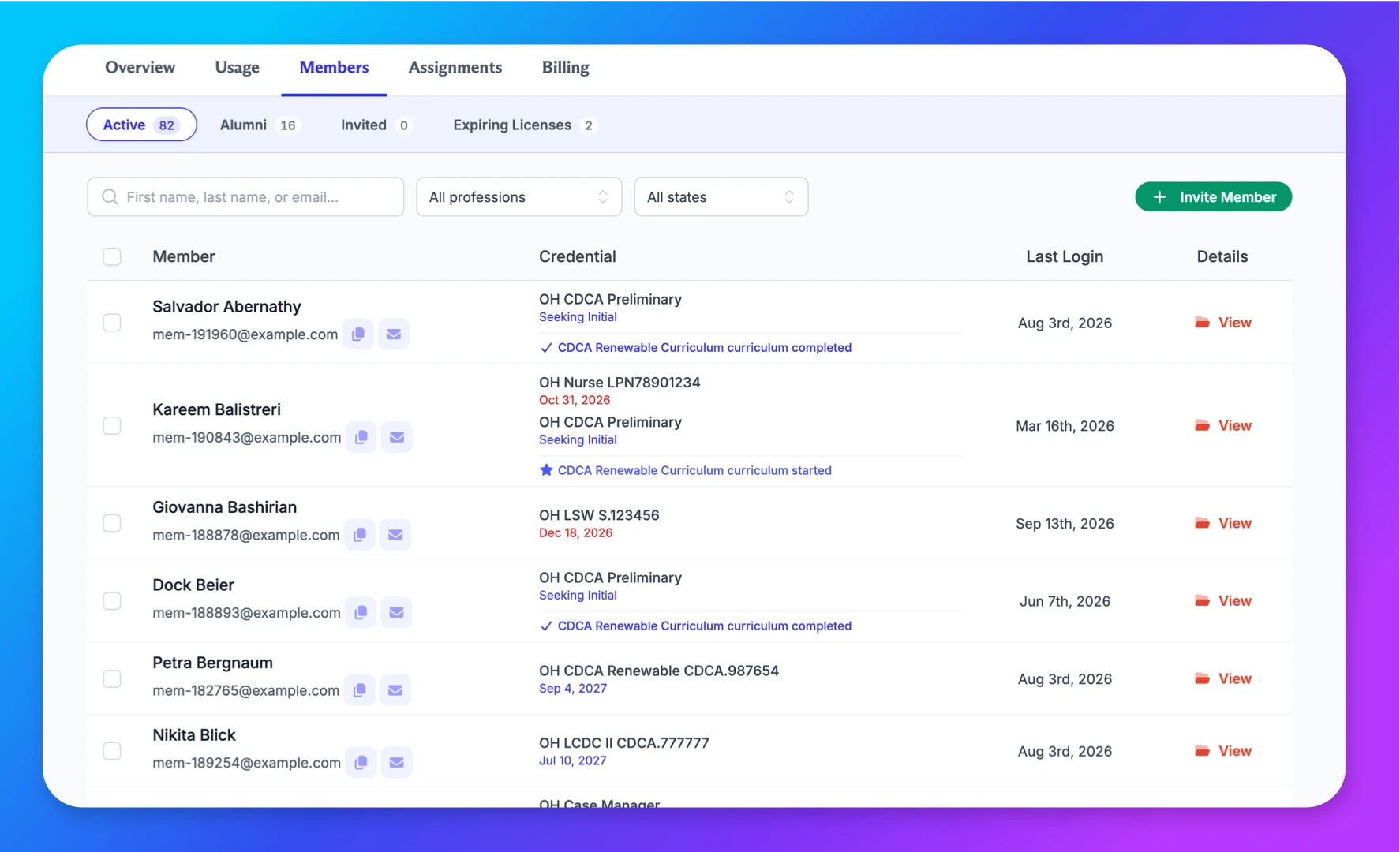
Who is on the team, who holds a seat, and who can administer.

  • Invite members by email or link; they join with their existing Impact CE account or create one.
  • See seat status per person and reassign a seat when someone leaves.
  • Promote a member to admin, or set an admin to admin-only so they use no seat.
  • Access info on alumni (former) team members.
  • Expiring licenses surfaced so you can catch renewals early.
The Team Members page of the team dashboard

2. Usage

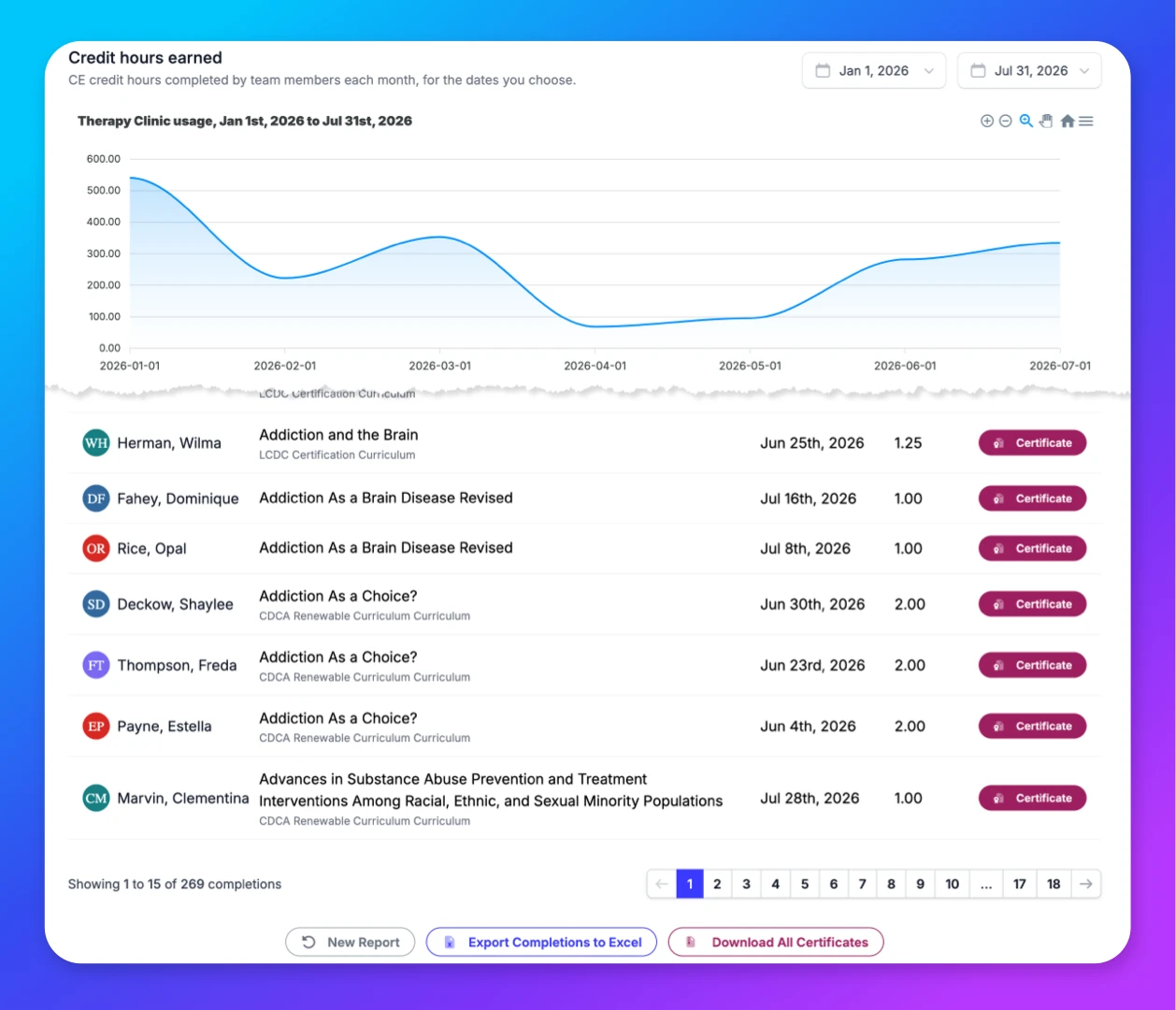
CE hours earned across the team over time, and per person.

  • Engagement chart of hours earned by the whole team.
  • Total hours and completed courses for each member.
  • Download the report as an Excel file for your HR system or accreditation file.
  • Download archived certificates for individual members or the entire team.
The Usage page of the team dashboard

3. Assign Courses & Curricula

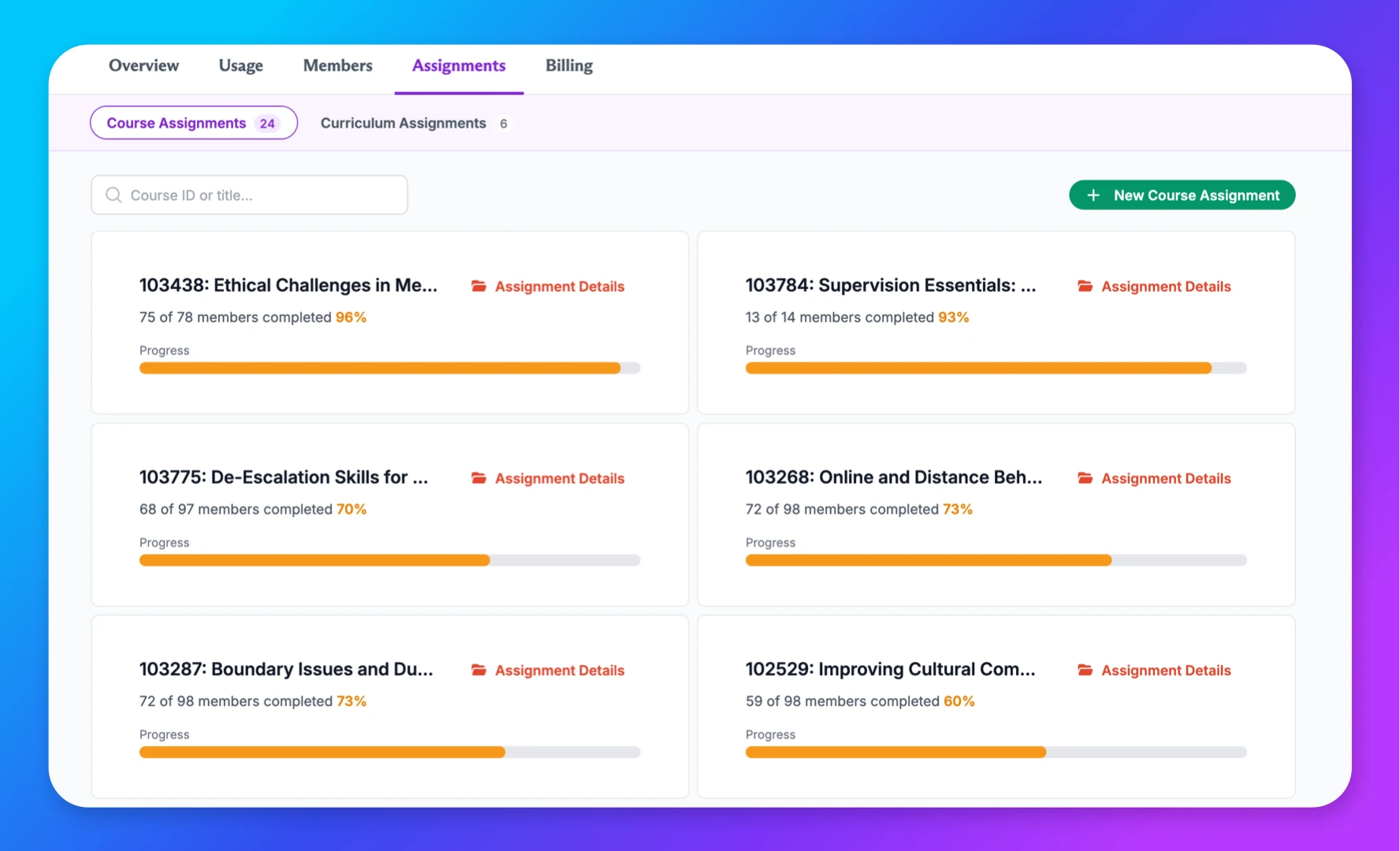
Required training, pointed at the right people.

  • Pick any course in your plan and assign it to one person or the whole team.
  • Members see the assignment in their own dashboard.
  • Completion shows up in the usage report; no certificate chasing.
The Assign Courses & Curricula page of the team dashboard

4. Billing

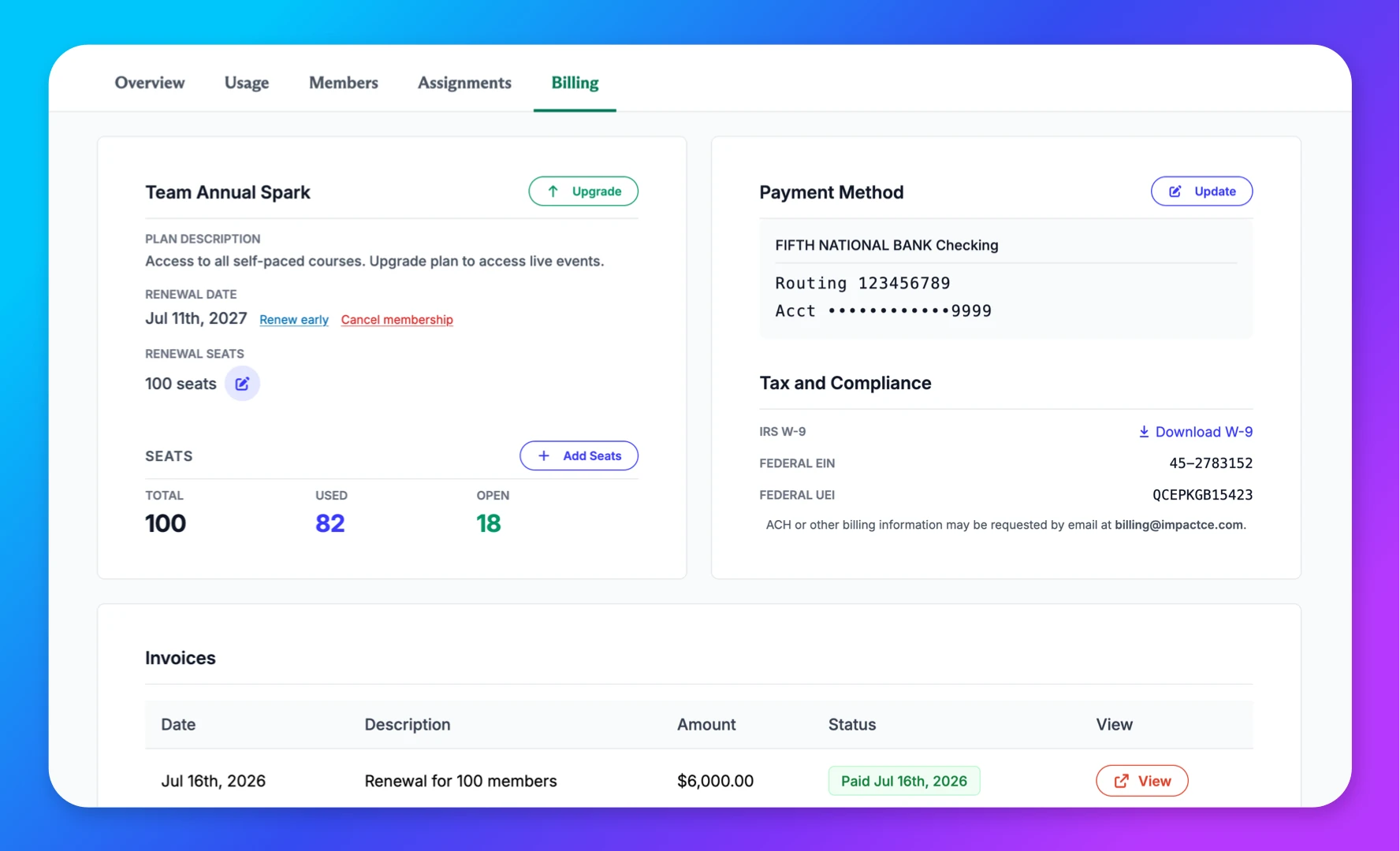
Transparent billing, easy access to accounting documents.

  • Your team subscription and seat allocation summary, accessible and clear.
  • Set next year's seat count separately, whenever your headcount is settled.
  • Buy more seats anytime; they are ready to assign immediately.
  • Payment method information can easily be updated.
  • Tax and compliance documents available on-demand, right in your account.
The Billing page of the team dashboard

Who can do what

roles FAQ

Straightforward role-based access control.

Capability Owner Admin Staff Member
Take courses (with a seat)
View team usage and export reports —
Invite, remove and reassign members —
Assign courses & curricula —
Name other admins and staff — —
Manage billing — —
Uses a seat Optional Optional Optional Yes

Owners and admins set to admin-only use no seat. Only the owner can remove another admin.

How seats work

read the FAQ

Step 1: A seat is course access

Assign a seat, and that person gets the full library your plan covers, just like an individual Spark or Ignite membership. People without a seat can still have an Impact CE account, but they can't take courses through your team.

Step 2: Total, used, open

Check your Settings or Billing page at any time to see total seats, seats in use, and seats still open. When someone new joins, an open seat is ready to hand out. Next year's seat count is set separately.

Step 3: Personnel changes, seats don't

Remove a member and the seat opens up for your next hire. They keep their account, history, and certificates. Team admins who don't need courses can be set to admin-only, which uses no seat.

Ready to learn more?

Schedule a demo for a free consultation, or learn by experience with a free 7-day trial.

Copyright © 2026 CE Learning Systems LLC

Please Confirm